Getting Started
This guide will help you get up and running with Kartoza ZFS Backup Tool.
Prerequisites
Before using this tool, ensure you have:
- A Linux system with ZFS installed
- At least one ZFS pool configured as your source (e.g., your main system pool)
- An external drive prepared with an encrypted ZFS pool (or use the tool to prepare one)
- The
syncoidutility installed (from the sanoid package)
Launching the Application
Interactive Mode (Recommended)
Simply run the application with sudo:
You'll be greeted with the main menu:
Navigation
Use these keys to navigate:
| Key | Action |
|---|---|
| Up / K | Move up |
| Down / J | Move down |
| Enter | Select option |
| Esc | Go back |
| Q | Quit |
Your First Backup
Step 1: Select Backup Operation
From the main menu, select Back Up Now.
Step 2: Choose Source Pool
The tool will scan for available ZFS pools and prompt you to select a source pool. This is the pool containing the data you want to backup.
Step 3: Choose Destination Pool
Next, select the destination pool. This should be your external backup drive. The tool will show both imported pools and pools that can be imported from external drives.
External Drives
If your external drive isn't showing, make sure it's connected and try running with sudo to allow pool detection.
Step 4: Enter Encryption Password
If your destination pool is encrypted (recommended), you'll be prompted for the encryption password.
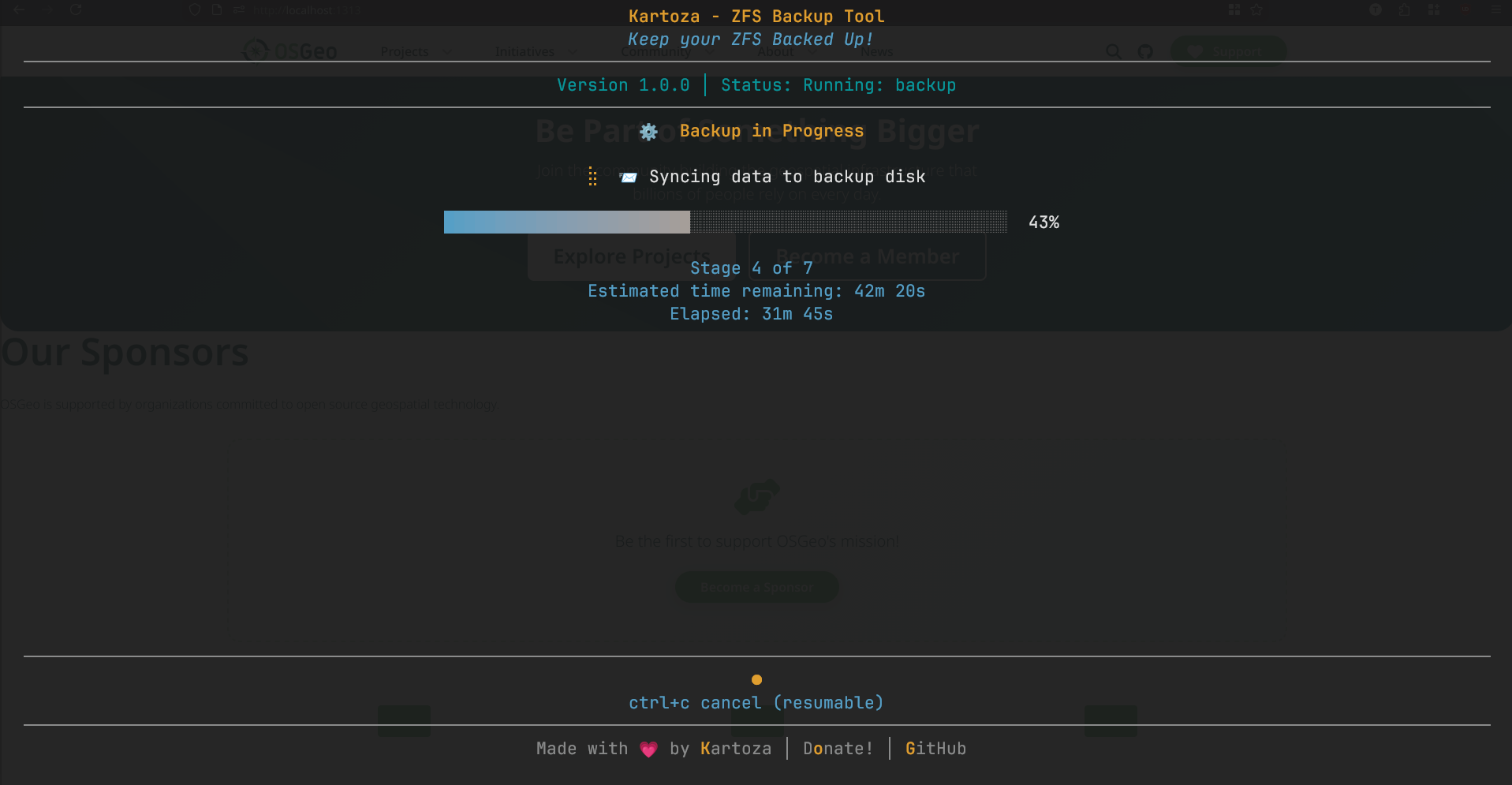
Step 5: Watch the Progress
The backup will proceed through several stages:
- Import Pool - Makes the external drive's pool available
- Load Encryption Key - Unlocks the encrypted pool
- Create Snapshot - Captures current state of your data
- Sync Data - Transfers changes to backup drive
- Prune Local Snapshots - Converts old snapshots to bookmarks
- Prune Backup Snapshots - Maintains retention policy
- Export & Power Off - Safely ejects the drive
Each stage includes explanatory text so you understand what's happening.
After the Backup
Once complete, you'll see a summary report showing:
- Oldest and newest snapshots
- Number of snapshots on local and backup
- Free space remaining
The external drive will be safely powered off and you can physically disconnect it.
Next Steps
- Learn about Backup Operations in detail
- Review Keyboard Shortcuts
- Set up ZFS Delegation to run without sudo
 by
by