Keyboard Layouts
These layouts show what every physical key does, one modifier layer at a time. They are the fastest way to build muscle memory: coloured keys are timvim's custom bindings, grey keys are standard Vim defaults.
How to read them
Each key shows its cap (top-left) and its function (centre). The legend
marks Custom (timvim), AI (Copilot/Claude), Motion (Flash and
movement) and Default (Vim). Space is the leader — its sub-menus live
in the Leader Key Map.
Normal mode
Normal mode (Vim's "command" mode) is where you spend most of your time. Three modifier layers cover it.
Unmodified
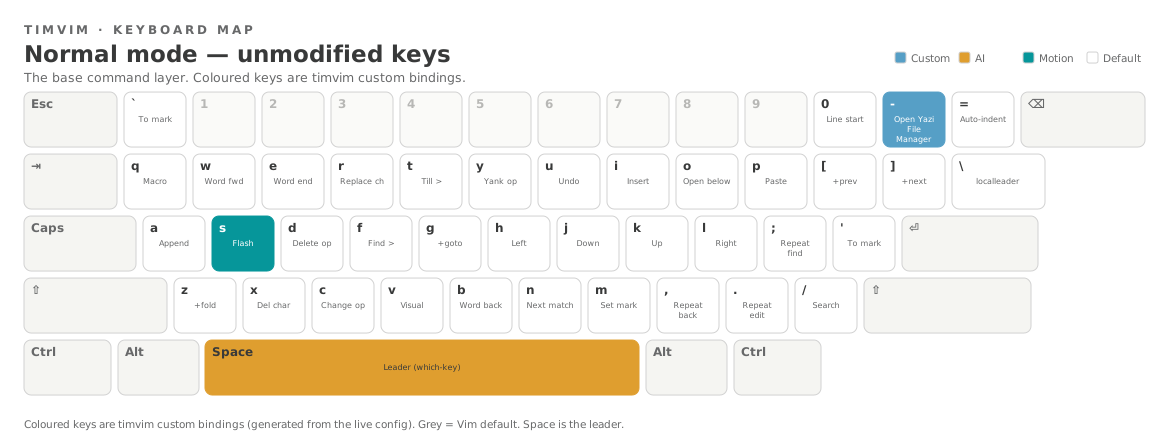
s is Flash jump (not substitute), - opens the Yazi file manager,
and Space is the leader.
With Shift
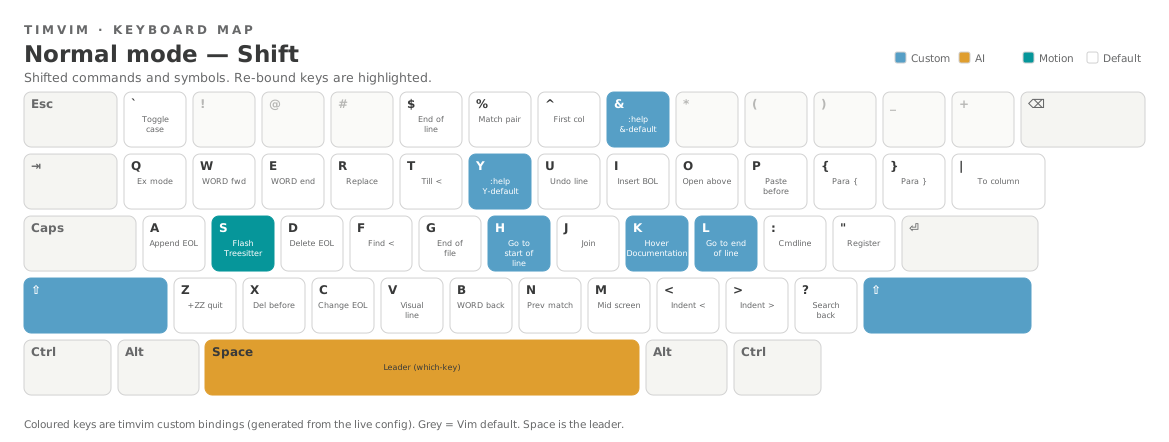
The re-bound keys are H/L (start / end of line), K (hover docs),
and S/R (Flash Treesitter jump and search).
With Ctrl
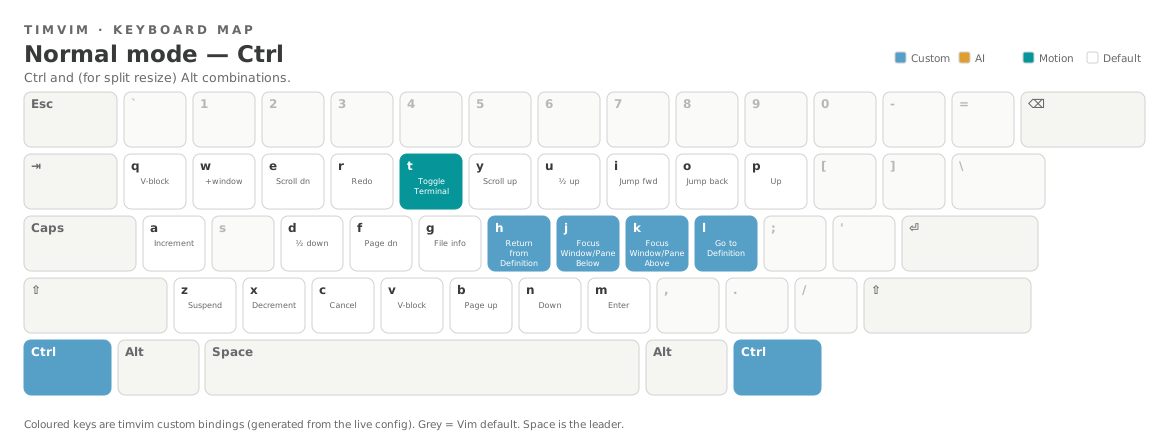
Ctrl+h/j/k/l move between splits and Ctrl+t toggles the floating
terminal. Hold Alt instead of Ctrl with h/j/k/l to resize the
current split.
Insert mode
In insert mode the letters type themselves — the useful bindings are on the
Ctrl and Alt layers, where completion and AI live.
Typing
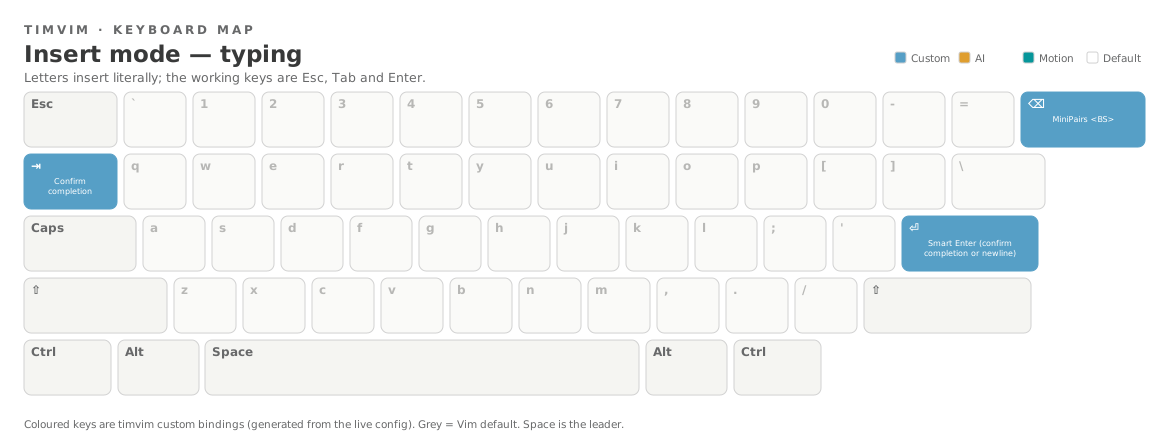
Esc returns to normal mode, Tab confirms a completion and Enter is
Smart Enter (accept the completion if the menu is open, otherwise a newline).
With Ctrl
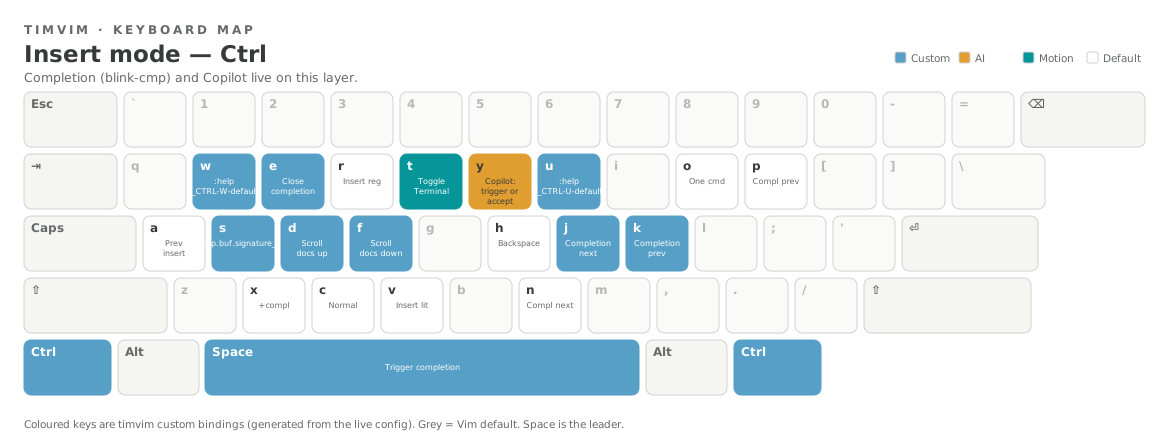
This is the blink-cmp completion layer: Ctrl+j/k move through the
menu, Ctrl+Space triggers it, Ctrl+e closes it, and Ctrl+y triggers
or accepts a Copilot suggestion.
With Alt
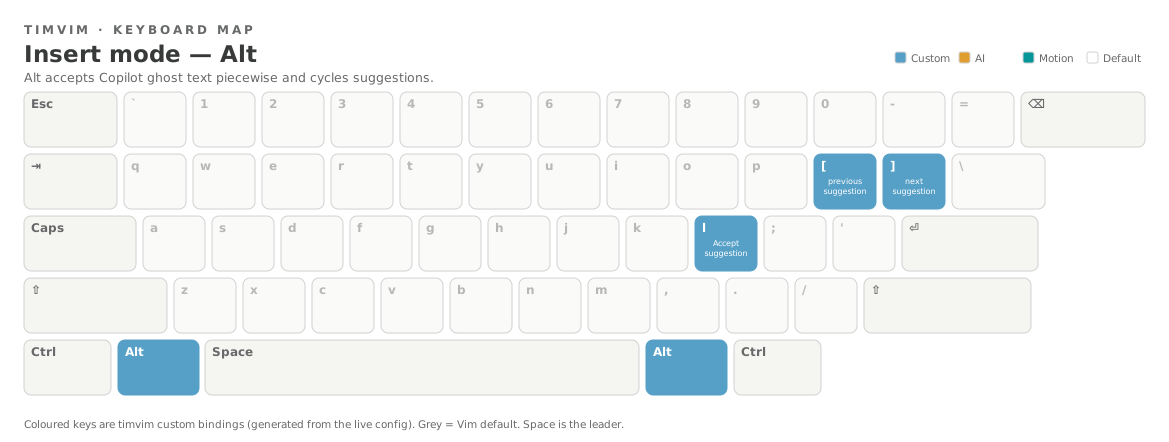
Alt accepts Copilot ghost text piece by piece — Alt+w a word, Alt+e
a whole line — and Alt+] / Alt+[ cycle between suggestions.
See also
For the grouped, searchable list of every binding see the Full Keymap; for the leader sub-menus see the Which-Key Menus.